
Haz la vida un poco más fácil
con la aplicación móvil My Energy Center
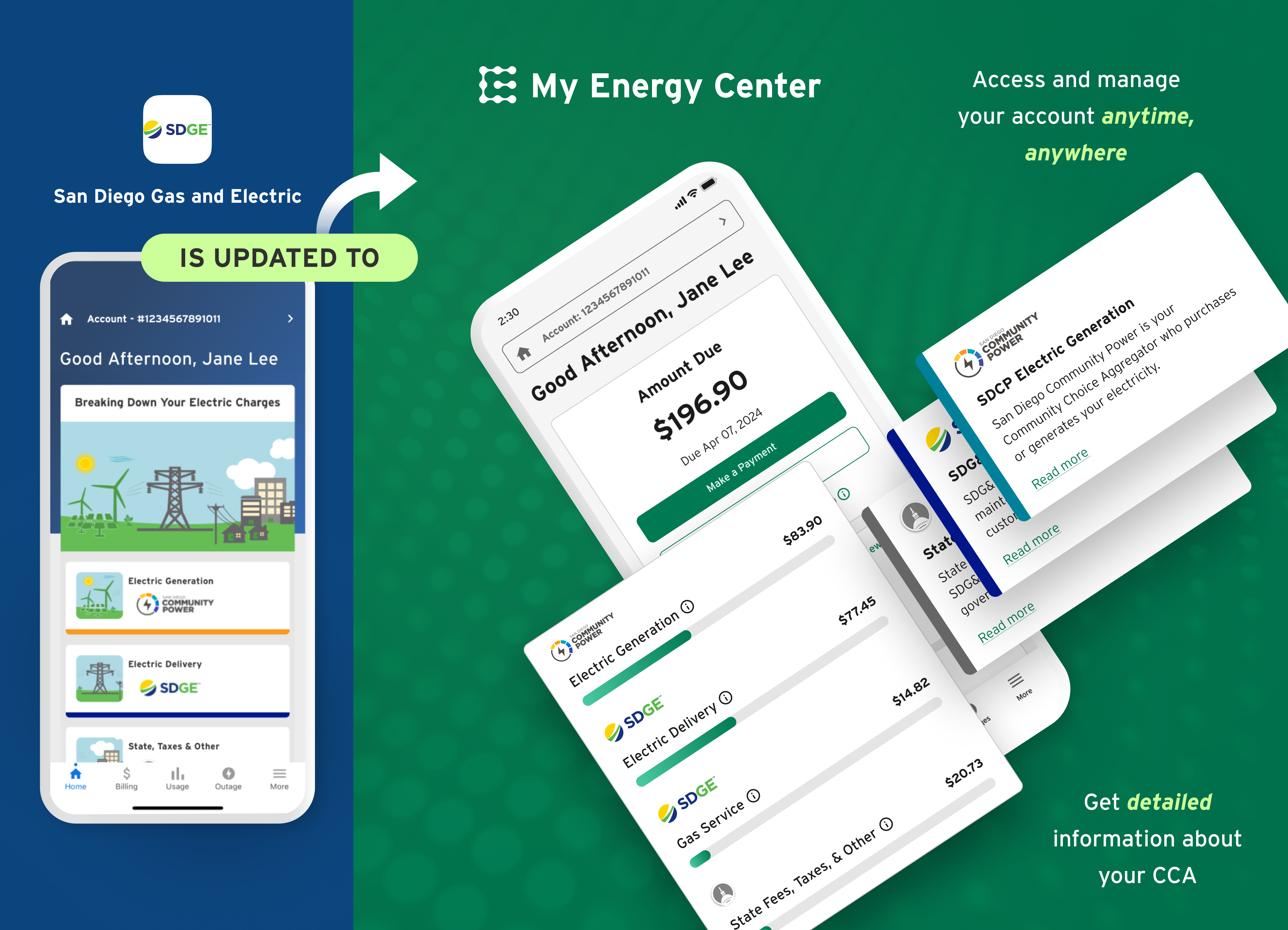
La nueva aplicación móvil My Energy Center ha reemplazado a la aplicación móvil Mi Cuenta de SDG&E. Esta nueva aplicación ofrece a los clientes una experiencia digital mejorada. Incluye todas las excelentes funciones de la aplicación Mi Cuenta anterior, pero ahora facilita aún más la comprensión de la factura y la gestión del consumo y los costos de energía.
¡Descárgalo y listo!


Nuevas características
Desglose de cargos
Una nueva vista fácil de usar de su cargo por suministro de energía de SDG&E y su cargo por consumo de electricidad de su CCA o SDG&E.

Tendencias de uso
Comprenda cómo y cuándo utiliza la energía. Consulte su consumo por mes, día y hora.

Inicio de sesión fácil
El reconocimiento facial y de huella dactilar permite iniciar sesión de forma rápida y segura. Además, puedes usar el mismo nombre de usuario y contraseña de tu cuenta.
Características convenientes

Gestionar gastos
Realice un seguimiento de su factura prevista durante el mes y consulte sus facturas y su historial de pagos.

Opciones de Pago
Programa un pago, configura el pago automático y mucho más. O, si lo necesitas, solicita más tiempo para pagar.

Estar al día
Mantente al tanto de tus cuentas con notificaciones y mantén tu información de contacto actualizada.

Servicios de mudanza
Programe el inicio, la finalización o el traslado de su servicio a través de la aplicación. ¡No necesita llamar!

Cortes
Utilice el mapa de interrupciones del suministro eléctrico para ver e informar sobre cortes de luz.
Los 10 mejores tutoriales
Registrarse es fácil. Descarga la aplicación móvil My Energy Center desde la App Store y Google Play.
- Después de descargar la aplicación, toque Regístrate.
- Proporcione su tipo de cuenta, nombre del cliente y uno de los siguientes datos:
- Correo electrónico
- Número de teléfono
- Últimos 4 dígitos del número de seguro social/número de identificación fiscal
- Configura tu perfil: nombre de usuario y contraseña
¡Listo! Ya puedes gestionar tu cuenta usando la aplicación.
¿Olvidaste tu contraseña? No hay problema, podemos ayudarte.
- En la sección Iniciar Sesión botón, buscar ¿Olvidaste tu nombre de usuario o contraseña?
- Toque en el Contraseña .
- En la ¿Has olvidado tu contraseña En la pantalla, introduce tu nombre de usuario. Si encontramos una coincidencia, te enviaremos un correo electrónico con un enlace para crear una nueva contraseña.
Algunos consejos útiles:
- Utilice el enlace seguro que aparece en el correo electrónico para actualizar su contraseña de inmediato; de lo contrario, el enlace caducará.
- Por motivos de seguridad, no se puede restablecer su contraseña a una contraseña anterior.
- Haga clic en el botón ojo Icono para ver tu nueva contraseña mientras la introduces.
- Una vez dentro, activa Face ID para que el inicio de sesión sea rápido, seguro y sencillo.
Aquí te explicamos cómo cambiar de cuenta:
- Localice la opción Cuenta Selector con el icono del edificio cerca de la parte superior de la pantalla, Cuenta - número de cuenta.
- Pulsa para buscar Cuenta – número de cuenta o flecha que apunta hacia la derecha.
- Mis direcciones de servicio Se mostrará. Toca la cuenta que deseas ver y haz clic en la flecha hacia atrás en la parte superior.
- La cuenta seleccionada debería mostrarse ahora en el Cuenta - Selector de número de cuenta.
- La pantalla de inicio debe mostrar la información de la cuenta correspondiente, el saldo, etc.
Para ver sus facturas anteriores:
- Pulsa para buscar Facturación desde la navegación en la parte inferior de la aplicación.
- Desde Facturación, toque el Historial de facturación y pagos .
- El historial de facturación se muestra de forma predeterminada.
- Toque en el Fecha de la factura Para ver un resumen y acceder a un archivo .pdf de su factura.
Configurar el pago automático solo lleva unos segundos.
Desde la pantalla de inicio:
- Pulsa para buscar Facturación desde la navegación en la parte inferior de la aplicación.
- Siguiente toque Pago automático de las opciones en la parte superior.
- Pulsa para buscar InscríbaseConfigura tu cuenta bancaria y selecciona una fecha de pago.
- Una vez enviada, su factura se pagará automáticamente a tiempo cada mes.
Ofrecemos opciones de pago a plazos para que tenga más tiempo para pagar su factura.
Para inscribirse en un plan de pago desde la aplicación:
- Pulsa para buscar Más En la parte inferior de la pantalla.
- De las opciones, toque Programas de facturación y luego en Arreglos de pago.
- Seleccione una extensión de pago o un plan de pago. Las opciones están sujetas a elegibilidad.
- Para actualizar sus números de teléfono o dirección de correo electrónico:
- Pulsa para buscar Más en la parte inferior de la pantalla
- Pulsa para buscar Mi Perfil de las opciones.
- Para actualizar su dirección postal:
- Toque en el Cuenta información cerca de la parte superior de la pantalla para acceder Mis direcciones de servicio.
- Desde Mis direcciones de servicioToca cualquier parte de la tarjeta de dirección seleccionada para editar tu dirección postal.
- Toque en el Dirección Postal bar.
Para cambiar de servicios:
- Pulsa para buscar Más en la parte inferior de la pantalla y ve a Servicios.
- Pulsa para buscar Servicios y seleccione entre las opciones Iniciar, Detener o Transferir.
- Consejo útil: Si va a cancelar el servicio en una dirección antigua y comenzar a recibirlo en una nueva dentro del área de servicio de SDG&E, seleccione Transferenciar.
Para solicitar una revisión de sus electrodomésticos de gas natural:
- Desde la pantalla de inicio, toque Más desde la navegación inferior
- En la siguiente pantalla, Central profunda Servicios.
- Seleccionar Revisión de aparatos de gas
- Seleccione un electrodoméstico de la lista y programe su cita.
Ofrecemos varias notificaciones de factura para ayudarle a controlar su consumo y costes de energía.
- Notificación de factura listaCada mes, le enviamos automáticamente una notificación por correo electrónico con el importe a pagar y un desglose de sus cargos.
- alertas de consumo de energíaTambién enviamos alertas sobre el consumo de energía con información sobre su factura y cargos previstos, junto con un desglose del consumo, para que no haya sorpresas en su próxima factura.
- Por defecto, la alerta de energía se envía a mitad de su ciclo de facturación.
- Tienes la opción de modificar tu configuración para recibir esta alerta:
-
- Semanalmente o establecer un umbral de costo
- Agregar una opción de mensaje de texto
-
- Recordatorio de pagoTambién puedes suscribirte para recibir un recordatorio de pago que se envía 5 días antes de la fecha de vencimiento de tu factura.
Para ver o actualizar sus preferencias:
- Pulsa para buscar Más desde la pantalla de inicio
- Pulsa para buscar Notificaciones y alertas
Descarga hoy mismo la aplicación móvil de SDG&E.